Turning a Cheap Android TV Box into a Pi-hole DNS Server
I had an old IN X PLUS Android TV box lying around, built on the Rockchip RK3229. The goal was simple: replace Android with Armbian, run Pi-hole on it, and use it as a network-wide ad and tracker blocker for my home LAN, without exposing anything to the internet.
It turned into a much longer journey than expected. The box refused to boot from SD, the network cable was secretly broken, my OpenWrt router had a duplicate PPPoE session silently killing IPv4, DNS was slow for reasons that had nothing to do with routing, and on one evening a firewall rule, a stuck resolver on my PC, and an ISP routing problem all hit at the same time.
This post documents everything: what I did, what broke, how I figured out why, and the final working setup.
TL;DR: the final setup
| Component | Details |
|---|---|
| Box | IN X PLUS, board HTT-RK-MINI-V7.0-2020.09 |
| SoC | Rockchip RK3229 (4x Cortex-A7, 32-bit, 1.2 GHz) |
| RAM / storage | 2 GB DDR3 / 8 GB Samsung eMMC (7456 MB usable) |
| OS | Armbian community build, Debian trixie, kernel 6.18, minimal (no desktop) |
| Network | 100 Mbps Ethernet, end0, static 192.168.1.10 |
| Router | Cudy WR3000 v1 running OpenWrt, 192.168.1.1 |
| DNS chain | Clients → Pi-hole (port 53) → Unbound (127.0.0.1:5335) → Quad9 over TLS (port 853) |
| Blocking | Hagezi blocklists for ads, trackers, malware, scams, adult content and gambling |
| Firewall | ufw on the box: SSH, DNS and the Pi-hole web UI, LAN only |
| Exposure | None. ISP uses CGNAT, OpenWrt blocks inbound traffic, no port forwards |
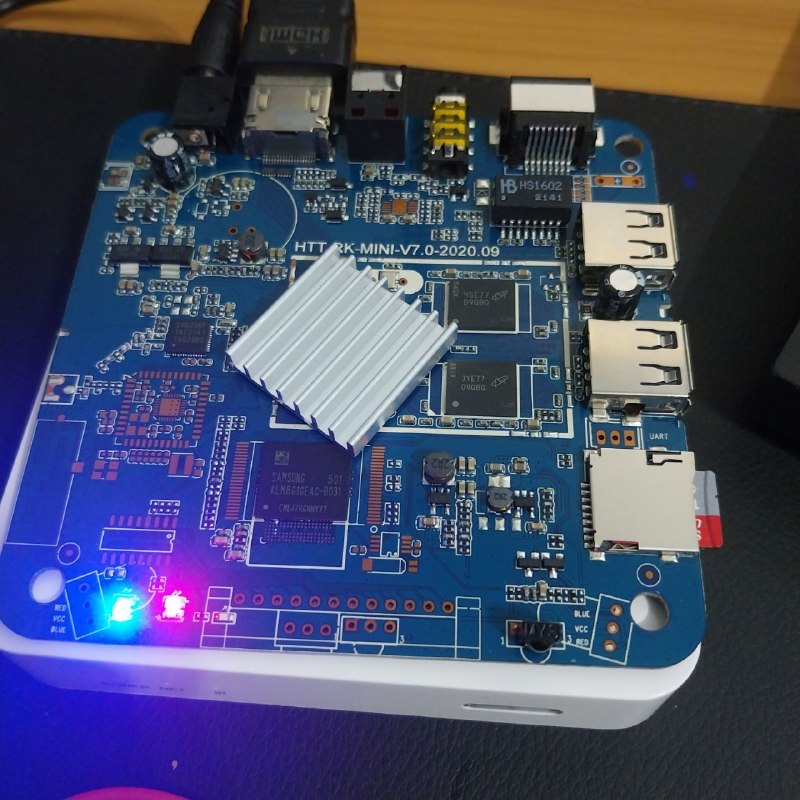 The IN X PLUS board (HTT-RK-MINI-V7.0) with the case open. Source: Author.
Section 1: Getting Armbian onto the box
1.1 The plan that did not work: booting from SD
The usual path for these boxes is to write the Armbian image to an SD card, boot from it, then copy the system to the internal eMMC with armbian-install. I was following this guide for the IN X PLUS. I wrote the card with dd, inserted it, plugged in the power, and nothing happened. Without the card, the box booted straight into Android.
Things did not go as expected, so I had to go the hard way, which, to be honest, is the way I am used to in most of my life. I had no way to tell what was going on from the outside, so I opened the box and connected to its serial console.
1.2 What you need
- A Linux PC.
- A 3.3 V USB-TTL adapter (mine is an FTDI FT232,
0403:6001). Never use 5 V on these boards. - A USB A-to-A (male-to-male) cable.
- A multimeter.
- A known-good network cable. More on that later.
- The Armbian minimal image for
rk322x-box, decompressed to.img.
On the PC:
1
2
3
4
yay -S rkdeveloptool-git
sudo pacman -S picocom
cd ~/Downloads
xz -dk ARMBIAN_IMAGE.img.xz
One gotcha on a rolling-release distro: if the kernel was updated and you have not rebooted, the FTDI driver will not load (modprobe: FATAL: Module ftdi_sio not found), because the running kernel’s modules are gone. Reboot first.
1.3 Reading the serial console
The board has three holes labeled “UART” right above the SD slot: GND, TX and RX. The wiring is crossed (adapter RX to box TX, adapter TX to box RX), and VCC stays disconnected.
| Adapter | Box |
|---|---|
| GND | GND (find it with a continuity test against the USB shield) |
| RX | TX |
| TX | RX |
| VCC | not connected |
To identify the pins, I first used the multimeter’s continuity mode to find GND, testing each hole against the metal shield of the USB port. Then, with the box powered on, I measured the voltage of the two remaining holes against GND. TX is the one whose voltage fluctuates during boot, because it is transmitting data; RX stays at a steady ~3.3 V.
If you do not have a multimeter, connect only GND and the adapter’s RX, then try each hole until boot text appears. Connecting only the adapter’s RX is safe, since it just listens.
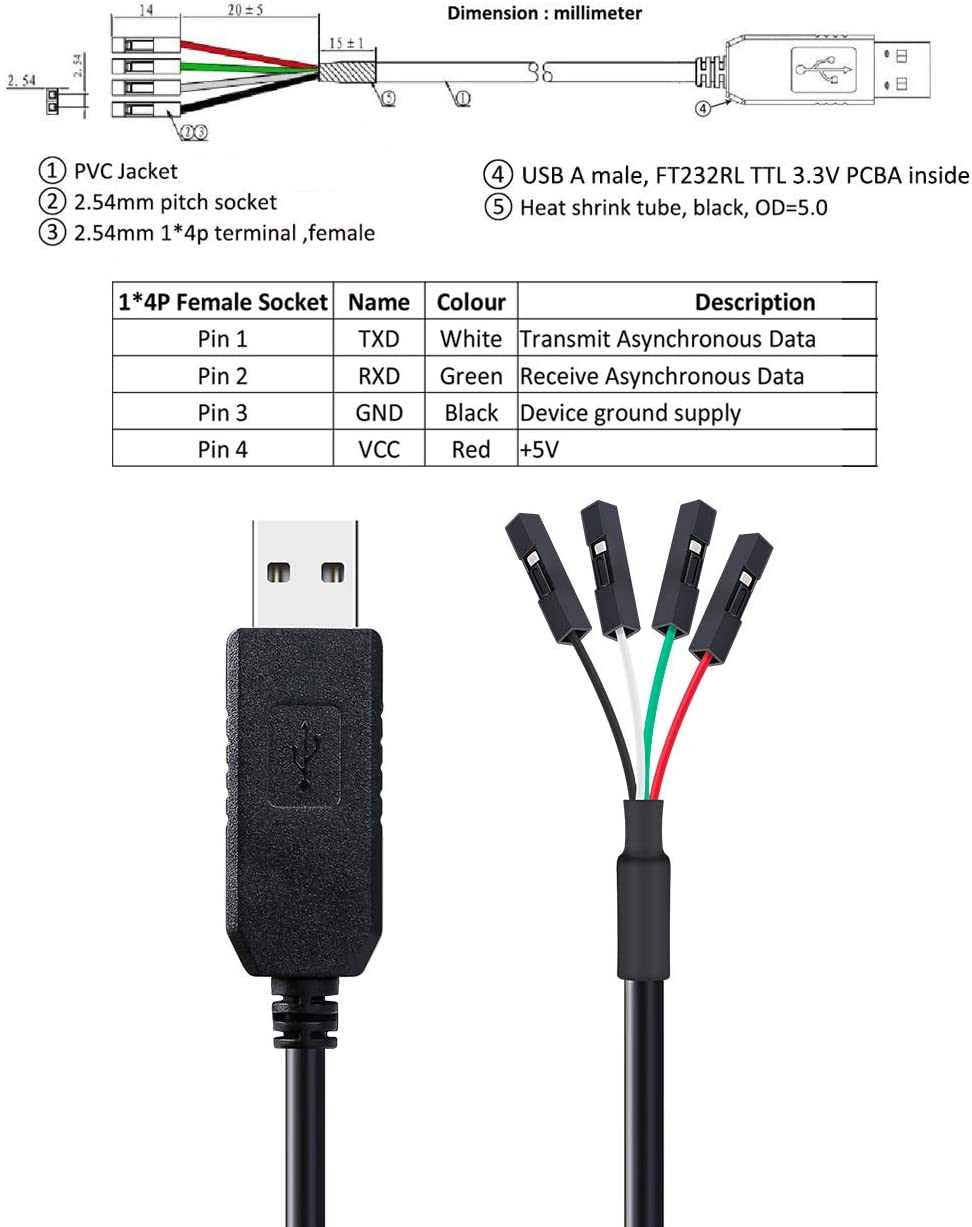 The USB-TTL adapter and its pinout. Source: Author.
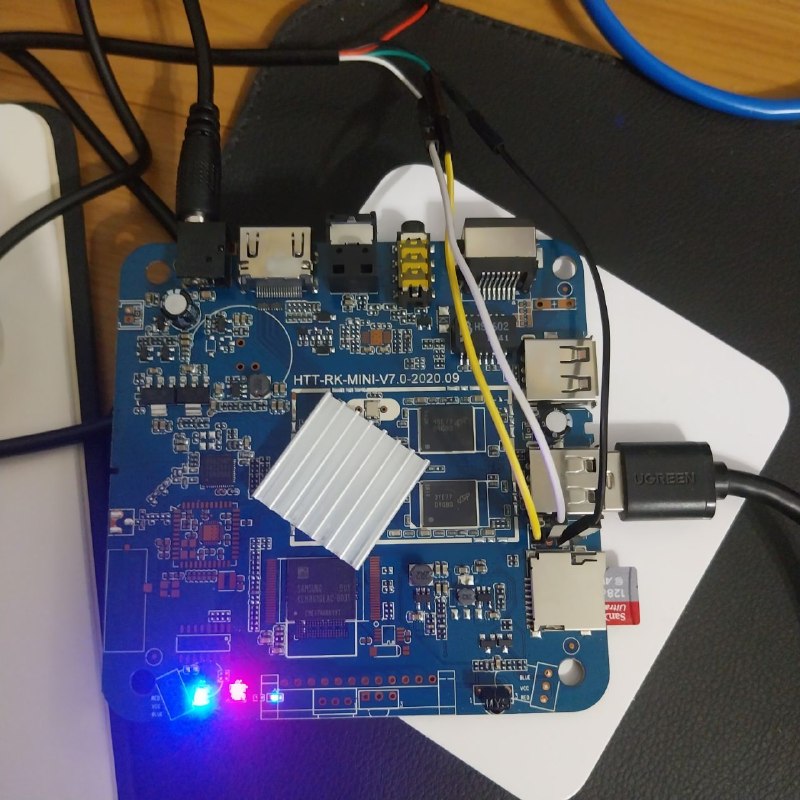 The adapter wired to the UART holes above the SD slot. Source: Author.
1
2
ls /dev/ttyUSB*
sudo picocom -b 1500000 /dev/ttyUSB0 --logfile ~/boot.log
The RK3229 talks at 1,500,000 baud. Start picocom before plugging in the box to catch the first lines. Exit with Ctrl+A, then Ctrl+X.
My first capture started late, with Android already booting. It still confirmed the wiring and the baud rate were right, and showed a few useful things: the Ethernet port working at 100 Mbps, and the SD card being detected after I inserted it with Android running (Android simply could not mount the Armbian partition):
1
2
3
4
5
6
7
8
[   27.364426] PHY driver name: Rockchip integrated EPHY
...
[   52.790035] mmc1: new high speed SDXC card at address b368
[   52.797774] mmcblk1: mmc1:b368 SDABC 117 GiB
[   52.802974]  mmcblk1: p1
[   53.086081] EXT4-fs (mmcblk1p1): Couldn't mount because of unsupported optional features (2000)
...
[  118.874708] libphy: stmmac-0:01 - Link is Up - 100/Full
None of that explains why the box would not boot from the card, though. For that, I needed the log from power-on, with the card already inserted.
My first capture was Android booting from the eMMC, with the SD card inserted only after the system was up. It confirmed the wiring and the baud rate were right, and showed something interesting: Android saw the Armbian card (mmcblk1) but could not mount its ext4 partition.
1
2
3
4
5
6
7
8
9
10
11
[   27.364426] PHY driver name: Rockchip integrated EPHY
...
[   51.254489] rk_sdmmc: BOOT   The card is removed..  ===!!!!!!==[mmc1]
[   52.511110] rk_sdmmc: BOOT   The card is inserted.  ===!!!!!!==[mmc1]
[   52.790035] mmc1: new high speed SDXC card at address b368
[   52.797774] mmcblk1: mmc1:b368 SDABC 117 GiB
[   52.802974]  mmcblk1: p1
[   53.085997] EXT4-fs (mmcblk1p1): Ignoring removed nomblk_io_submit option
[   53.086081] EXT4-fs (mmcblk1p1): Couldn't mount because of unsupported optional features (2000)
...
[  118.874708] libphy: stmmac-0:01 - Link is Up - 100/Full
That log starts 26 seconds into the boot, so it misses the part that matters. To see why the box would not boot from SD, the capture has to start with the card already inserted and picocom open before the power is plugged in.
1.4 Why the SD card was ignored
With the card inserted, the log showed this:
1
2
3
4
5
6
7
8
9
10
11
12
13
14
15
16
17
18
19
20
21
22
23
24
25
26
27
28
29
30
31
32
33
DDR Version V1.06 20171026
In
300MHz
DDR3
Bus Width=16 Col=11 Bank=8 Row=16 CS=1 Die Bus-Width=16 Size=2048MB
...
Boot1 Release Time: 2017-06-12, version: 2.37
ChipType = 0xc, 294
SdmmcInit=2 0
BootCapSize=2000
UserCapSize=7456MB
FwPartOffset=2000 , 2000
SdmmcInit=0 0
BootCapSize=0
UserCapSize=120029MB
...
U-Boot 2014.10-RK322X-06-02572-g5936812-dirty (Mar 16 2022 - 16:21:20)
...
SdmmcInit = 0 0
SDCard Update.
storage init OK!
Using default environment

GetParam
W: Invalid Parameter's tag (0x00000000)!
Invalid parameter
...
'recovery' does not seem to be a partition nor an address
Unable to boot:recovery
try to start backup
'backup' does not seem to be a partition nor an address
Unable to boot:backup
try to start rockusb
The old Android bootloader on the eMMC (SdmmcInit=2, 7456 MB) runs first. It sees the SD card (SdmmcInit=0, 120029 MB), assumes it is an Android firmware update card (“SDCard Update”), looks for Android partitions, finds none, and gives up in rockusb mode, waiting for a USB connection. The box was not dead; it was waiting for a firmware flasher.
The log also confirmed the RAM: 2048 MB of DDR3, more than the 1 GB I expected for this model.
So the SD route was out. Instead, I would write Armbian directly to the eMMC over USB.
1.5 Loader mode, then Maskrom
Rockchip devices have two USB flashing modes:
- Loader mode is provided by the existing bootloader. In it,
rkdeveloptooladdresses the eMMC starting 4 MB in, past the area where the bootloader lives. - Maskrom mode is built into the SoC itself and addresses the eMMC from sector 0.
I learned the difference the hard way, which is exactly why the steps below go through Loader first and then switch to Maskrom.
Steps:
- Remove the SD card. With it inserted, Loader mode targets the card instead of the eMMC.
- Connect the A-A cable to the box’s USB OTG port (try the other port if needed).
- Hold the reset button (paperclip in the AV jack hole) and plug in the power. Release after about 5 seconds.
- Check the device and the storage size:
1
2
sudo rkdeveloptool ld      # should end with "Loader"
sudo rkdeveloptool rfi     # should report ~7456 MB (eMMC)

rkdeveloptool ld detecting the box in Loader mode. Source: Author.
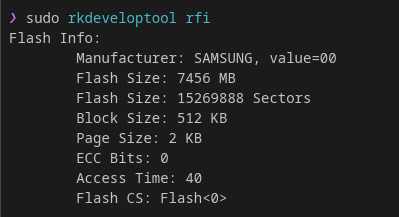
rkdeveloptool rfi reporting the 7456 MB Samsung eMMC. Source: Author.
If rfi reports about 117 GB, it is pointing at the SD card. That happened to me the first time, with the card still inserted:
1
2
3
4
Flash Info:
	Manufacturer: SAMSUNG, value=00
	Flash Size: 120029 MB
	Flash Size: 245819392 Sectors
Stop, remove the card and enter Loader mode again.
- Reboot into Maskrom:
1
2
sudo rkdeveloptool rd 3
sudo rkdeveloptool ld      # should now end with "Maskrom"
1
2
Reset Device OK.
DevNo=1	Vid=0x2207,Pid=0x320b,LocationID=601	Maskrom
Running rd 3 again once you are already in Maskrom returns “Reset Device failed”, which is expected.
1.6 Backing up Android (or trying to)
Before wiping anything, you can dump the original firmware with rl (read LBA), so you can restore Android later if you want:
1
sudo rkdeveloptool rl 0 15269888 ~/backup-inxplus-android.img
In my case it failed. I ran it in Loader mode, and because of the 4 MB offset the read started past the bootloader area and tried to read 4 MB beyond the end of the eMMC. The serial console filled up with errors like these:
1
2
3
4
5
6
SDM_Read FLT_ERROR, LBA = e8e000, iret = 4
SdmmcInit = 2 0
SDM_Read FLT_ERROR, LBA = e8e080, iret = 4
SdmmcInit = 2 0
...
SDM_Read FLT_ERROR, LBA = e90000, iret = 4
0xe8e000 is 15,261,696 sectors, exactly the eMMC size minus 8192 sectors (4 MB). The resulting file was missing the first 4 MB, which is precisely where the bootloader lives, so it was not a usable backup. I did not care much about keeping Android, so I moved on. If you do care, run the backup from Maskrom after loading the loader (next section).
 The backup attempt with
 rkdeveloptool rl. It reports completion, but the dump made in Loader mode is incomplete. Source: Author.
The same offset explains why erasing with ef in Loader mode did not help either. After the erase, the old loader was still there, now with nothing left to boot:
1
2
3
4
5
6
7
8
9
10
11
12
DDR Version V1.06 20171026
...
Boot1 Release Time: 2017-06-12, version: 2.37
ChipType = 0xc, 293
SdmmcInit=2 0
BootCapSize=2000
UserCapSize=7456MB
FwPartOffset=2000 , 2000
SdmmcInit=0 2
StorageInit ok = 47747
...
powerOn 730646
FwPartOffset=2000 is the 4 MB offset itself (0x2000 sectors). The rest of the eMMC was wiped, but the bootloader sits in those first 4 MB that Loader mode cannot reach, so it kept taking priority over the SD card.
1.7 Building the loader
Maskrom needs a small loader uploaded over USB before it can access the eMMC. Rockchip’s rkbin repository ships the pieces but not the merged file, so it has to be built with boot_merger:
1
2
3
4
5
git clone --depth 1 --filter=blob:none --sparse https://github.com/rockchip-linux/rkbin
cd rkbin
git sparse-checkout set bin/rk32 RKBOOT tools
./tools/boot_merger RKBOOT/RK322XMINIALL.ini
ls -l rk322x_loader_v1.10.256.bin
The RK322XMINIALL.ini profile uses the 300 MHz DDR init blob, the same one the original bootloader used according to the serial log (300MHz at the top of section 1.4).
1.8 Writing Armbian to the eMMC
1
2
3
4
sudo rkdeveloptool db rk322x_loader_v1.10.256.bin
sudo rkdeveloptool rfi     # confirm ~7456 MB again
sudo rkdeveloptool wl 0 ~/Downloads/Armbian_community_26.11.0-trunk.62_Rk322x-box_trixie_current_6.18.54_minimal.img
sudo rkdeveloptool rd
The write takes about a minute:
1
2
Write LBA from file (100%)
Reset Device OK.
This time the serial console showed a modern U-Boot and the 6.18 kernel instead of the 2017 Android loader.
1.9 First boot
On first boot Armbian expands the root partition to the whole eMMC and may reboot once. Then the login prompt appears: user root, password 1234. The first-run wizard asks for a new root password and creates a regular user.
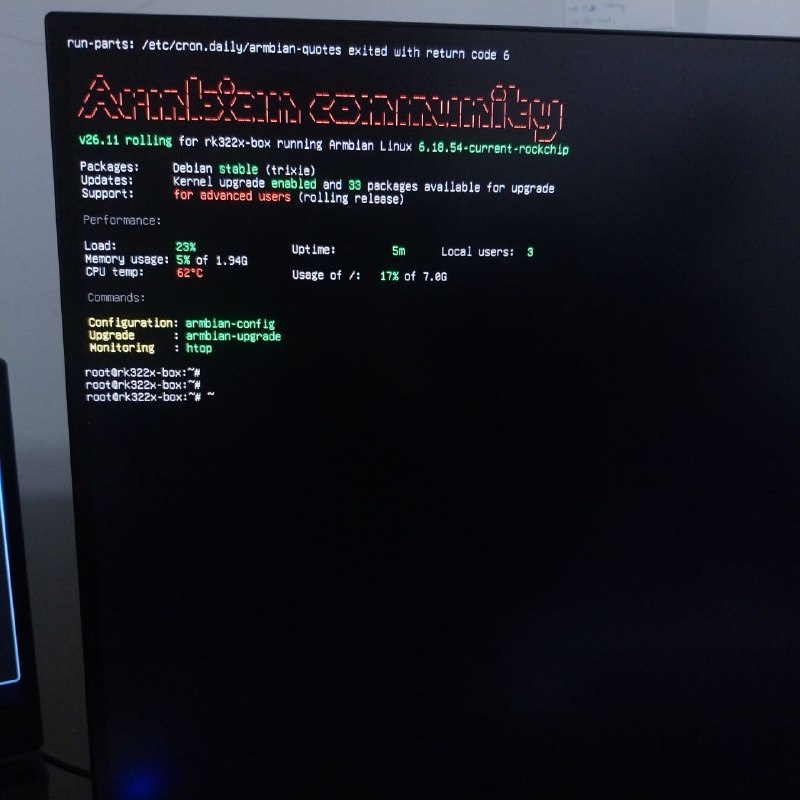 Armbian booting from the eMMC for the first time. Source: Author.
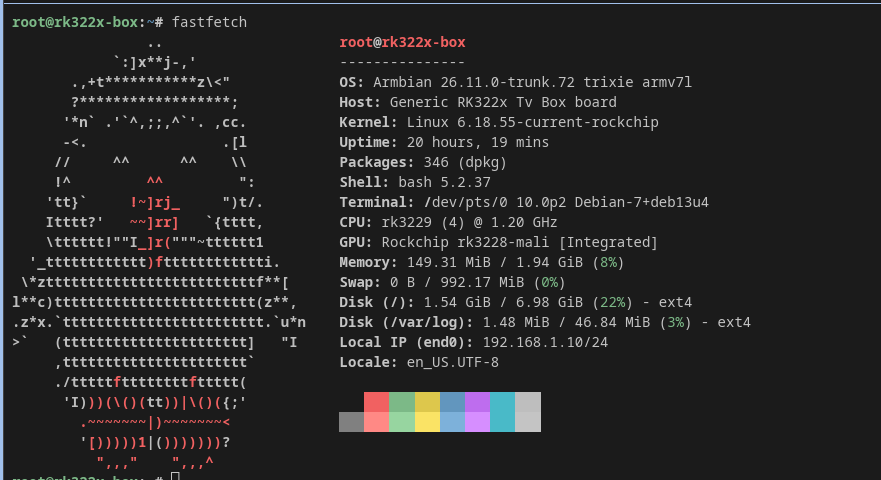
fastfetch on the freshly installed system. Source: Author.
The cpu-hs overlay was already active: the CPU runs at up to 1.2 GHz (cat /sys/devices/system/cpu/cpu0/cpufreq/scaling_max_freq returns 1200000). If it shows 1008000, enable it with sudo rk322x-config.
Section 2: Networking the box
2.1 A static IP that refused to apply
For a DNS server, a static IP is mandatory: every device on the network will be told to send its queries to that address, so it cannot change. I created a netplan file for end0, applied it, and the box still had no IPv4 address. networkctl status end0 explained why:
1
Network File: /run/systemd/network/10-netplan-all-eth-interfaces.network
Armbian ships /etc/netplan/10-dhcp-all-interfaces.yaml, which matches every interface whose name starts with “e” and enables DHCP. Its generated config took precedence over mine. Moving it out of the way fixed that:
1
sudo mv /etc/netplan/10-dhcp-all-interfaces.yaml /root/
My static config, /etc/netplan/20-end0-static.yaml:
1
2
3
4
5
6
7
8
9
10
11
12
13
14
network:
  version: 2
  renderer: networkd
  ethernets:
    end0:
      dhcp4: false
      dhcp6: true
      addresses:
        - 192.168.1.10/24
      routes:
        - to: default
          via: 192.168.1.1
      nameservers:
        addresses: [1.1.1.1, 9.9.9.9]
1
2
3
sudo chmod 600 /etc/netplan/20-end0-static.yaml
sudo netplan generate
sudo netplan apply
A few deliberate choices:
- 192.168.1.10 sits outside OpenWrt’s DHCP pool (.100 to .250), so it never collides with a leased address.
- The box itself resolves through 1.1.1.1 and 9.9.9.9, not through its own Pi-hole, so it can still reach the internet if Pi-hole is down.
2.2 The cable that only worked in one direction
Even with the address applied, ping to the router failed with “Destination Host Unreachable”. The interface counters gave it away:
1
ip -s link show end0
RX was stuck at 0 packets while TX kept climbing. The box was sending, but receiving nothing at all, not even the router’s IPv6 announcements. The driver loaded fine, the link came up at 100 Mbps full duplex, and I spent a while suspecting a kernel regression, since I was running a trunk build.
The link status did not help either. Android’s serial log had already shown Link is Up - 100/Full on this port (section 1.3), and Armbian showed the same. A cable with one broken pair can still negotiate a link, so “link up” proves very little.
It was the cable. One of the receive pairs was broken. A new cable fixed it instantly.
Lesson: when a link is up but RX is zero, swap the cable before debugging anything else.
2.3 SSH and exposure
1
ssh root@192.168.1.10
A common question: does the box have a public IP? No. The Armbian login banner shows a “WAN” address, but that is just the public IP that external services see. My ISP uses CGNAT (Carrier-Grade NAT): instead of giving each customer a public IPv4, it puts many customers behind a shared one. My router only gets a 100.x.x.x address, and the “WAN” IP in the banner belongs to the ISP’s gateway, shared with other customers. Nothing from the internet can start a connection to my network over IPv4.
On IPv6 the box does get global 2804:... addresses, but OpenWrt’s firewall drops unsolicited inbound traffic by default. With no port forwards configured, everything on the box is reachable from the LAN only.
Section 3: An OpenWrt detour
3.1 Some sites worked, others did not
While setting things up, DuckDuckGo, Slack and a few other sites failed with “Unable to connect” on every PC and browser. Google and YouTube worked fine.
Two tests narrowed it down:
1
2
curl -4 -v --max-time 15 https://duckduckgo.com -o /dev/null
ping -4 -c 3 8.8.8.8
The connection was refused within 1 ms, and ping returned Destination Port Unreachable from 192.168.1.1. A real remote refusal cannot arrive in 1 ms, so something local was rejecting the traffic: the router. All IPv4 was being rejected, while IPv6 worked. The sites that “worked” simply had IPv6; the ones that failed were IPv4-only.
On the router:
1
2
ip -4 route
logread | grep -iE "pppd|pppoe|wan" | tail -30
There were two PPPoE sessions up at the same time, wan and wan1, both authenticated and both given an address by the ISP. The default route used the second one:
1
default via 100.84.1.254 dev pppoe-wan1
wan1 was not in the firewall’s wan zone, so every IPv4 packet forwarded to it hit the default reject rule. IPv6 went through wan_6, which rides on pppoe-wan, inside the zone. That explained the IPv4/IPv6 split exactly. The duplicate interface had probably been created by accident when I first configured PPPoE.
The fix:
1
2
3
uci delete network.wan1
uci commit network
service network restart
Section 4: Pi-hole
4.1 What Pi-hole actually does
Every time a device opens a website or an app talks to a server, it first asks a DNS server to translate a name (doubleclick.net) into an IP address. Pi-hole is a DNS server that sits in the middle of that process. If the name is on one of its blocklists, it answers 0.0.0.0, and the connection never happens. If not, it forwards the question to an upstream resolver and caches the answer. This is usually called a DNS sinkhole.
Since it works at the DNS level, it covers every device on the network, including the ones where you cannot install an ad blocker, like smart TVs.
4.2 Installation
1
2
apt update && apt upgrade -y
curl -sSL https://install.pi-hole.net | bash
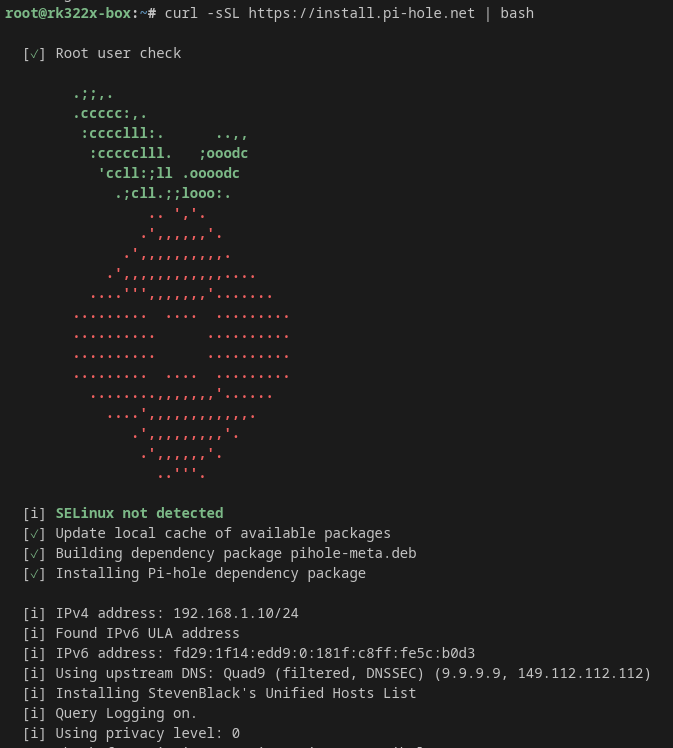 Pi-hole installer running on the box. Source: Author.
Installer choices:
| Screen | Choice | Why |
|---|---|---|
| Static IP Needed | Continue | Already static via netplan |
| Interface | end0 | The only wired interface |
| Upstream DNS | Quad9 (filtered, DNSSEC) | Replaced later by Unbound (Section 6) |
| Blocklist | Default | More lists added later (section 4.5) |
| Query logging | Yes | Needed to troubleshoot false positives |
| Privacy mode | 0 - Show everything | Home network, I am the only admin |
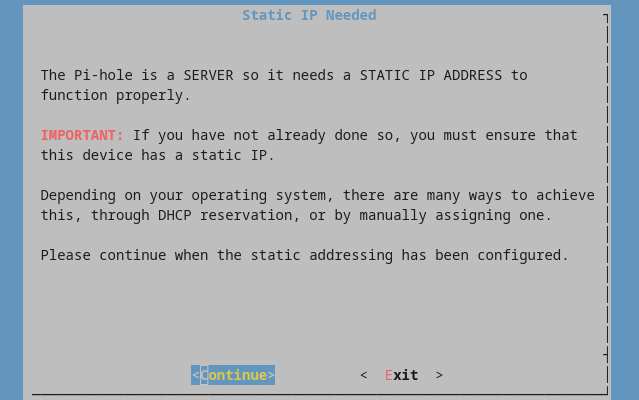 The installer warning that Pi-hole needs a static IP. Source: Author.
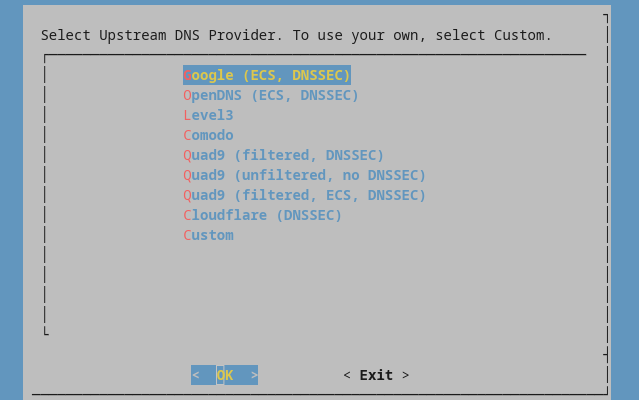 Selecting the upstream DNS provider. Source: Author.
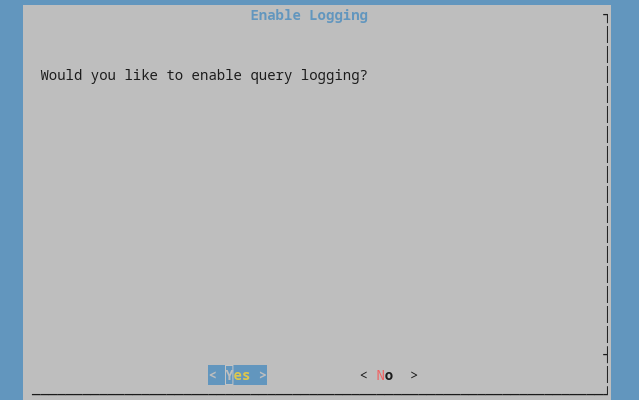 Enabling query logging. Source: Author.
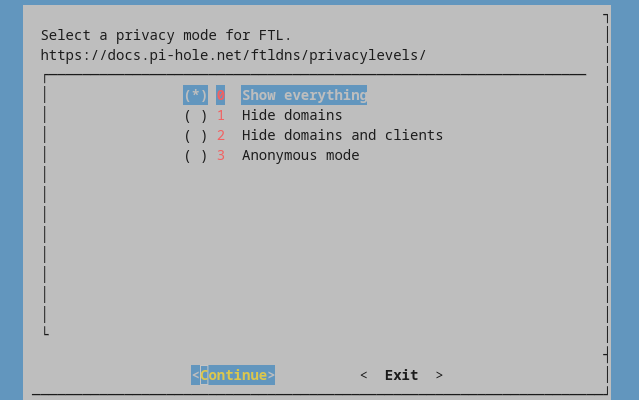 Selecting the FTL privacy mode. Source: Author.
Afterwards:
1
2
3
pihole setpassword
pihole-FTL --config database.maxDBdays 30
systemctl restart pihole-FTL
Reducing the query history from the default 91 days to 30 keeps the database smaller, which means fewer writes to the eMMC and a faster dashboard on this slow CPU.
The web UI stays on the default ports 80 and 443. The login page is at http://192.168.1.10/admin/login. Moving it to 8080/8443 only matters if you want to run nginx on the same box.
4.3 “Error (-2)”
Right after installation, the “Domains on Lists” card showed “Error (-2)”, and the sidebar counters showed -2. The blocklist database (gravity.db) had not been built. Rebuilding it fixed it:
1
2
pihole -g
systemctl restart pihole-FTL
After that, the card showed 72,234 domains from the default list. A quick direct test:
1
2
nslookup doubleclick.net 192.168.1.10    # 0.0.0.0 (blocked)
nslookup google.com 192.168.1.10         # real IP
4.4 Making the whole network use it
Pi-hole only filters queries that are sent to it. To make every device use it, the router has to hand it out as the DNS server through DHCP (the protocol that gives devices their IP, gateway and DNS when they join the network). In OpenWrt, under Network > Interfaces > LAN > DHCP Server:
- Advanced Settings > DHCP-Options:
6,192.168.1.10. DHCP option 6 is “DNS server”. - IPv6 Settings > Announced IPv6 DNS servers:
fd29:1f14:edd9:0:181f:c8ff:fe5c:b0d3
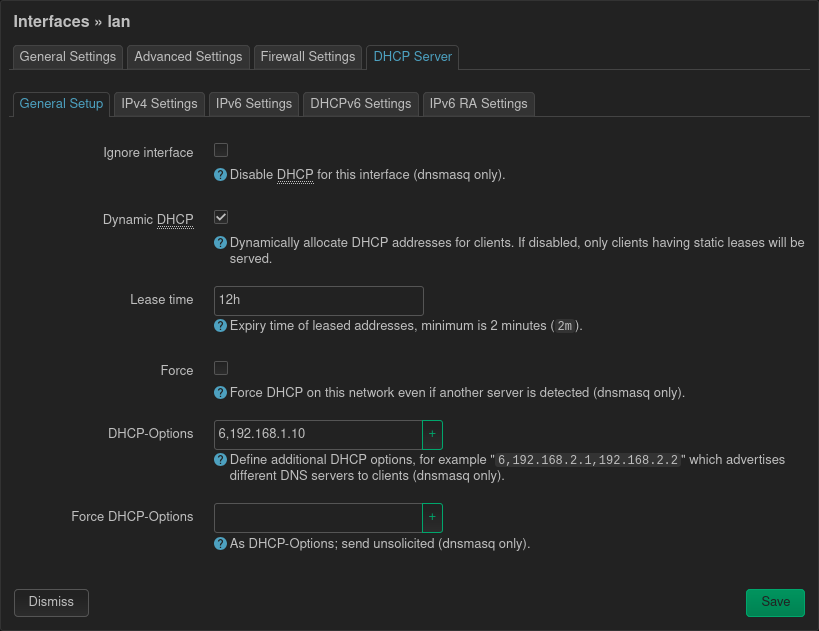 DHCP option 6 pointing IPv4 clients to the Pi-hole. Source: Author.
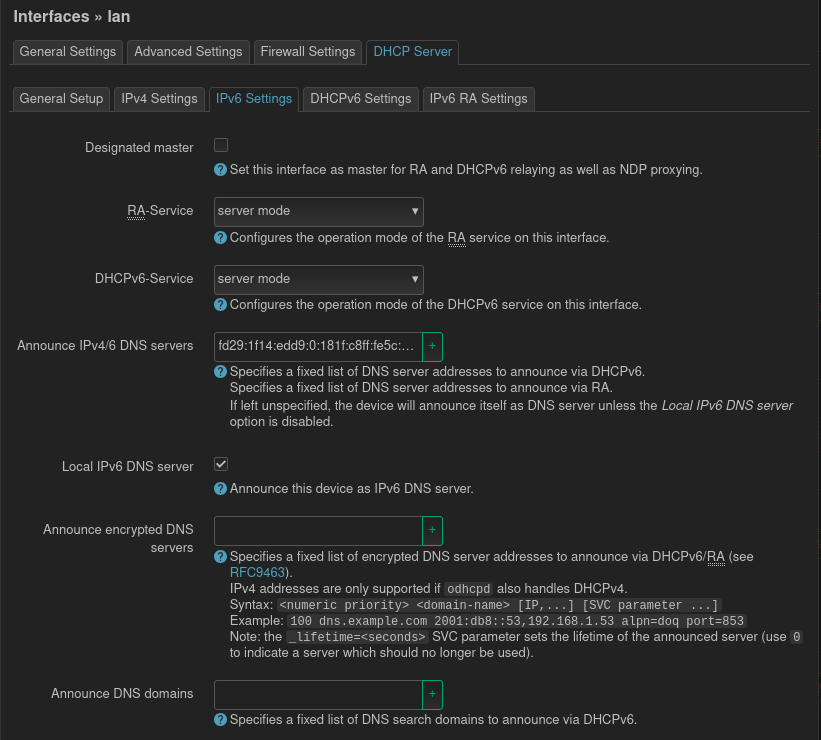 Announcing the Pi-hole as the IPv6 DNS server. Source: Author.
I used the box’s fd... address rather than its 2804:... public address. fd addresses are ULAs (Unique Local Addresses), the IPv6 equivalent of 192.168.x.x: private, generated by OpenWrt, and stable. The public prefix comes from the ISP and changes over time, so announcing it would break DNS at the next prefix change.
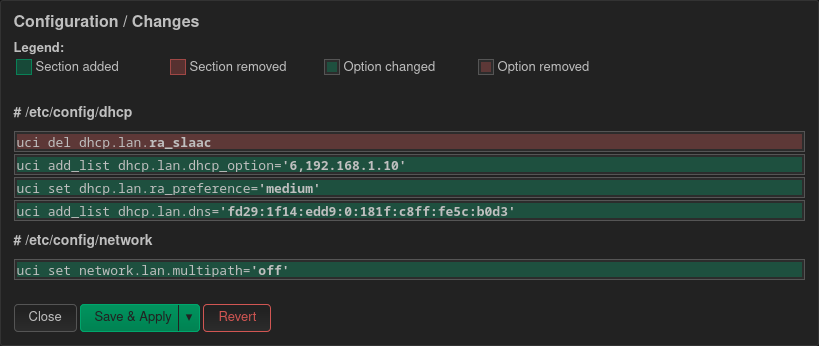 LuCI pending changes before Save & Apply. The extra lines are default values LuCI writes when saving. Source: Author.
Devices pick up the change when they renew their lease. IPv6 updates within seconds; IPv4 waits for the DHCP lease, so reconnecting speeds it up:
1
2
3
nmcli networking off && nmcli networking on
resolvectl status | grep "DNS Servers"
# DNS Servers: 192.168.1.10 fd29:1f14:edd9:0:181f:c8ff:fe5c:b0d3
Wi-Fi clients get it too, since both wireless networks are bridged into the same LAN in OpenWrt.
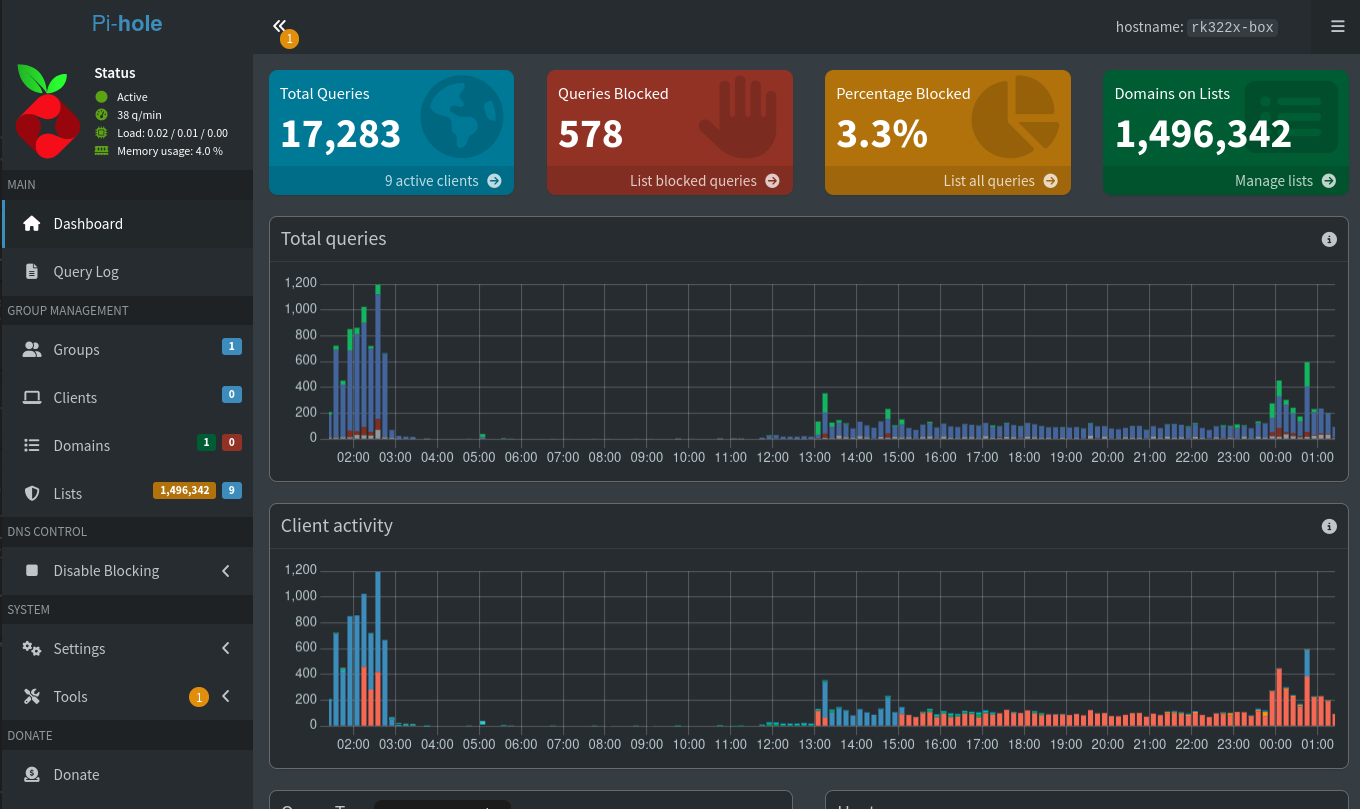 The Pi-hole dashboard with the whole network using it. Source: Author.
A note on what Pi-hole can and cannot do: it blocks at the DNS level, so it cannot block ads served from the same domain as the content, such as YouTube’s. A browser extension like uBlock Origin covers that.
4.5 Custom blocklists
The default list covers the basics. I added a few lists from the Hagezi project, which are well maintained and have few false positives:
| List | URL | What it blocks |
|---|---|---|
| Multi Pro | https://cdn.jsdelivr.net/gh/hagezi/dns-blocklists@latest/adblock/pro.txt | Ads, trackers and telemetry. More complete than the default list |
| Threat Intelligence Feeds (medium) | https://cdn.jsdelivr.net/gh/hagezi/dns-blocklists@latest/adblock/tif.medium.txt | Malware, phishing, cryptojacking and scams |
| Fake | https://cdn.jsdelivr.net/gh/hagezi/dns-blocklists@latest/adblock/fake.txt | Fake shops and fraudulent sites |
| Pop-Up Ads | https://cdn.jsdelivr.net/gh/hagezi/dns-blocklists@latest/adblock/popupads.txt | Malicious pop-ups and redirects |
| Native Samsung | https://cdn.jsdelivr.net/gh/hagezi/dns-blocklists@latest/adblock/native.samsung.txt | Samsung device telemetry |
| NSFW | https://cdn.jsdelivr.net/gh/hagezi/dns-blocklists@latest/adblock/nsfw.txt | Adult content |
| Gambling | https://cdn.jsdelivr.net/gh/hagezi/dns-blocklists@latest/adblock/gambling.txt | Betting and gambling sites |
| DoH/VPN/Proxy Bypass | https://cdn.jsdelivr.net/gh/hagezi/dns-blocklists@latest/adblock/doh-vpn-proxy-bypass.txt | Encrypted DNS servers, VPNs and proxies that devices could use to bypass Pi-hole |
They go under Lists in the web UI (only the URL in the Address field, the description in Comment), followed by:
1
pihole -g
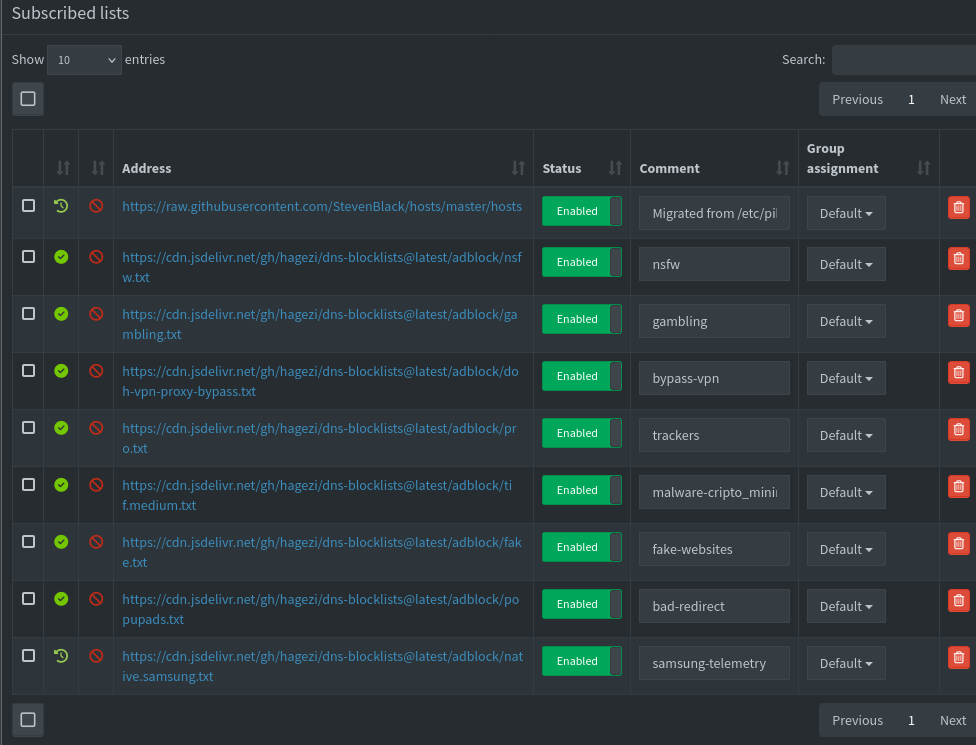 The custom blocklists in Pi-hole. Source: Author.
With Multi Pro in place, the default StevenBlack list becomes mostly redundant and can be disabled.
Two things worth knowing:
- The bypass list blocks your own VPNs and encrypted DNS too. If you use a VPN on some device, assign the NSFW, Gambling and bypass lists to a separate group in Pi-hole (Groups and Clients) instead of the Default group, so they only apply to the devices you want to restrict.
- Paste only the URL. The first time, I pasted the whole table row (name and URL) into the Address field. Pi-hole accepts several addresses separated by spaces, so it created one list per word. The next gravity run reported lists called “Contorno”, “do”, “bloqueio” and “Hagezi” as inaccessible. Deleting them fixed it:
1
2
3
pihole-FTL sqlite3 /etc/pihole/gravity.db "SELECT id, address FROM adlist;"
pihole-FTL sqlite3 /etc/pihole/gravity.db "DELETE FROM adlist WHERE id BETWEEN 4 AND 9;"
pihole -g
4.6 Allowing NextDNS on my phone
My phone uses NextDNS as Android’s “Private DNS”, so it stays filtered on mobile data too. At home it failed with “Private DNS server cannot be accessed”, because the bypass list blocks dns.nextdns.io. pihole -q shows exactly what matches a domain:
1
pihole -q <your-id>.dns.nextdns.io
Replace <your-id> with the ID shown in the Setup tab of your NextDNS dashboard. It identifies your profile, so keep it out of screenshots and posts.
My first attempt at allowing it, pihole allow --regex '...', made things worse: it saved the rule as a deny regex (type 3 in the domainlist table) instead of an allow regex (type 2). The correct commands are:
1
2
3
pihole --regex -d '(\.|^)dns\.nextdns\.io$'        # remove the wrong deny rule
pihole --allow-regex '(\.|^)dns\.nextdns\.io$'     # add it as an allow rule
pihole reloaddns
| Action | Command |
|---|---|
| Allow an exact domain | pihole allow domain.com |
| Deny an exact domain | pihole deny domain.com |
| Allow by regex | pihole --allow-regex 'expression' |
| Deny by regex | pihole --regex 'expression' |
| Remove a rule | the same command with -d |
Section 5: Chasing slow DNS
5.1 Symptoms
With Pi-hole live, browsing felt sluggish and some commands timed out:
1
2
yay -Ss speedtest
dial tcp: lookup aur.archlinux.org: i/o timeout
Pi-hole’s Diagnosis page showed:
1
Maximum number of concurrent DNS queries reached (max: 150)
That warning means 150 queries were waiting for an answer from the upstream at the same time. Normally an answer arrives in milliseconds, so queries only pile up when the upstream is slow.
5.2 Isolating it
Pointing my PC at the router’s DNS made everything fast again, which proved the internet connection was fine and the problem was somewhere on the Pi-hole path:
1
sudo resolvectl dns enp3s0 192.168.1.1
Then I compared resolvers:
| Server | Time |
|---|---|
| Pi-hole, first query | 204 ms |
| Pi-hole, repeated query (cache) | 2 ms |
| Router (ISP resolver) | 9 ms |
| 1.1.1.1 (Cloudflare) | 7 ms |
| 8.8.8.8 (Google) | 6 ms |
| 9.9.9.9 (Quad9) | 198 ms |
| 149.112.112.112 (Quad9) | 201 ms |
| 208.67.222.222 (OpenDNS) | 258 ms |
My first guess was a bad route to Quad9. I was wrong:
1
2
dig +short CH TXT id.server @9.9.9.9    # "res713.qgru1" (GRU = São Paulo)
mtr -rwc 20 9.9.9.9                     # ~7 ms via IX.br, 0% loss
The network path was 7 ms. The ~200 ms came from Quad9’s servers on cache misses: every domain they had not seen recently took about 200 ms to resolve, and some timed out. Enough of those in parallel and Pi-hole hit its limit of 150 pending queries.
Section 6: Unbound with DNS over TLS
6.1 A few concepts first
- Unbound is a validating, caching DNS resolver. It can resolve names by itself, starting from the root servers (recursive mode), or forward queries to another resolver (forwarding mode). Here it runs on the box, behind Pi-hole, in forwarding mode.
- DNS over TLS (DoT) wraps DNS queries in TLS, the same encryption used by HTTPS, on port 853. Plain DNS travels in clear text on port 53, so anyone in the path, including the ISP, can read every domain you look up. With DoT they only see an encrypted connection to the resolver.
- DNSSEC adds cryptographic signatures to DNS records. A validating resolver checks them and rejects answers that were tampered with. It protects integrity, not privacy, which is why it complements DoT.
I wanted two things: no single “convenient” provider seeing and possibly filtering everything in clear text, and queries encrypted so my ISP cannot read them. Unbound forwarding over DoT gives both: encryption to an upstream I choose, local DNSSEC validation, and its own cache.
6.2 Mullvad vs Quad9
I tried Mullvad’s unfiltered DNS first. It worked, but it was too slow from my connection, probably because Mullvad has no DNS server nearby. Quad9’s unfiltered TLS endpoint (dns10.quad9.net), served from São Paulo, was much better:
| Domain (uncached) | Mullvad over TLS | Quad9 dns10 over TLS |
|---|---|---|
| wikipedia.org | 236 ms | 48 ms |
| debian.org | 360 ms | 32 ms |
| mozilla.org | 236 ms | 20 ms |
| kernel.org | 244 ms | 464 ms (cache miss) |
| github.com | 1240 ms | cached |
6.3 Configuration
1
apt install unbound ca-certificates
/etc/unbound/unbound.conf.d/pi-hole.conf:
1
2
3
4
5
6
7
8
9
10
11
12
13
14
15
16
17
18
19
20
21
22
23
24
25
26
27
28
server:
    verbosity: 0
    interface: 127.0.0.1
    port: 5335
    do-ip4: yes
    do-ip6: yes
    do-udp: yes
    do-tcp: yes
    prefer-ip6: no
    harden-glue: yes
    harden-dnssec-stripped: yes
    edns-buffer-size: 1232
    prefetch: yes
    num-threads: 1
    tls-cert-bundle: /etc/ssl/certs/ca-certificates.crt
    private-address: 192.168.0.0/16
    private-address: 169.254.0.0/16
    private-address: 172.16.0.0/12
    private-address: 10.0.0.0/8
    private-address: fd00::/8
    private-address: fe80::/10

forward-zone:
    name: "."
    forward-tls-upstream: yes
    forward-addr: 9.9.9.10@853#dns10.quad9.net
    forward-addr: 149.112.112.10@853#dns10.quad9.net
    forward-addr: 2620:fe::10@853#dns10.quad9.net
interface: 127.0.0.1andport: 5335keep Unbound reachable only from the box itself, on a port that does not clash with Pi-hole’s 53.- The
#dns10.quad9.netsuffix makes Unbound verify Quad9’s TLS certificate, so nobody can impersonate it. prefetch: yesrefreshes popular records before they expire.- The
private-addresslines stop public domains from resolving to private IPs, a protection against DNS rebinding attacks. - To use Mullvad instead:
194.242.2.2@853#dns.mullvad.netand2a07:e340::2@853#dns.mullvad.net.
1
2
unbound-checkconf
systemctl restart unbound
Testing on the box:
1
2
3
dig archlinux.org @127.0.0.1 -p 5335 | grep -E "status|Query time"      # NOERROR
dig archlinux.org @127.0.0.1 -p 5335 | grep -E "status|Query time"      # 0 ms, cached
dig dnssec-failed.org @127.0.0.1 -p 5335 | grep status                  # SERVFAIL = DNSSEC works
dnssec-failed.org is a domain with deliberately broken signatures. A SERVFAIL there means Unbound is validating and rejecting it, which is what you want.
If journalctl -u unbound shows can't bind socket: Address already in use for ::1 port 53 from before the config file existed, ignore it: without the config, Unbound tried port 53, which belongs to Pi-hole.
6.4 Wiring Pi-hole to Unbound
In Pi-hole, Settings > DNS: uncheck every provider, put 127.0.0.1#5335 under Custom DNS servers, leave Pi-hole’s own DNSSEC off (Unbound validates), and save. Verify it from the shell, because leftover providers are easy to miss (see Section 8):
1
pihole-FTL --config dns.upstreams     # must be [ 127.0.0.1#5335 ]
Result from my PC:
1
2
dig gitlab.com | grep "Query time"    # 24 ms
dig gitlab.com | grep "Query time"    # 0 ms
Section 7: Hardening the box
7.1 Firewall with ufw
Even though nothing is exposed to the internet, a firewall on the box limits what other LAN devices (a compromised smart TV, for example) can reach.
Before writing rules, check which ports are actually in use. I skipped this step and it cost me an evening (Section 8):
1
2
ss -tlnp
pihole-FTL --config webserver.port    # 80o,443os,[::]:80o,[::]:443os
The rules:
1
2
3
4
5
6
sudo apt install ufw
sudo ufw default deny incoming
sudo ufw default allow outgoing
sudo ufw allow from 192.168.1.0/24 to any port 22 proto tcp
sudo ufw allow in on end0 to any port 53
sudo ufw allow from 192.168.1.0/24 to any port 80,443 proto tcp
The DNS rule is bound to the end0 interface rather than a subnet, so it covers IPv4 and every IPv6 source address clients might use (the public IPv6 prefix changes). Since end0 only faces the LAN, that is still LAN-only.
What ufw does not break: outbound connections (Unbound to Quad9, apt), the box’s own IPv6 (ufw allows the needed ICMPv6 and DHCPv6 replies by default), and Pi-hole talking to Unbound over localhost.
7.2 A safety net before enabling it
A wrong rule can lock you out over SSH. Before enabling, I armed a timer that disables ufw after 5 minutes:
1
2
3
sudo sh -c 'nohup sh -c "sleep 300; ufw disable" >/dev/null 2>&1 &'
sudo ufw enable
sudo ufw status verbose
After testing SSH, DNS over IPv4 and IPv6, and the web UI from my PC, I cancelled the timer. Kill the parent shell first; killing only sleep makes the shell run ufw disable immediately:
1
2
3
pgrep -af "sleep 300"     # shows the sh and the sleep PIDs
sudo kill <sh_pid> <sleep_pid>
sudo ufw status           # still active
I saved it as an alias for future rule changes:
1
echo 'alias ufw-safe="sudo sh -c '\''nohup sh -c \"sleep 300; ufw disable\" >/dev/null 2>&1 &'\''"' >> ~/.bashrc
The serial console remains the last-resort way back in.
On Armbian minimal, ufw’s blocked packets go to the journal, not /var/log/ufw.log:
1
sudo journalctl -k | grep "UFW BLOCK" | tail -20
7.3 SSH: what is recommended
For a LAN-only box, I settled on a middle ground: block direct root login and use a strong password on the regular user, and add a key for convenience while keeping password login as a fallback.
1
2
# /etc/ssh/sshd_config
PermitRootLogin no
1
2
sudo sshd -t && sudo systemctl restart ssh
ssh-copy-id YOUR_USER@192.168.1.10      # from the PC
Key-only login (PasswordAuthentication no) is worth it if the box ever becomes reachable from outside, or once untrusted IoT devices share the network. If a key is lost, the serial console still allows a local login to add a new one.
Section 8: The evening everything broke at once
8.1 What happened
A few hours after the firewall went up, several things failed at once: the Pi-hole web UI would not load, DuckDuckGo searches hung, fast.com said it could not reach its servers, and the Ookla speedtest CLI did nothing. It looked like one big problem. It was four separate ones, which is exactly why it was confusing.
8.2 Problem 1: the firewall was guarding the wrong ports
I had planned to move the Pi-hole web UI to 8080/8443 to free port 80 for nginx, and wrote the ufw rule for those ports. But I never actually changed Pi-hole’s port, so it was still listening on 80/443, which ufw was now blocking.
1
pihole-FTL --config webserver.port    # 80o,443os,[::]:80o,[::]:443os
Fix: allow the ports Pi-hole really uses and drop the unused rule:
1
2
sudo ufw allow from 192.168.1.0/24 to any port 80,443 proto tcp
sudo ufw delete allow from 192.168.1.0/24 to any port 8080,8443 proto tcp
8.3 Problem 2: Pi-hole was still using plain Quad9
1
2
pihole-FTL --config dns.upstreams
[ 9.9.9.9, 149.112.112.112, 127.0.0.1#5335 ]
The old Quad9 upstreams were still checked alongside Unbound. Pi-hole spread queries across all three, so part of the traffic went unencrypted and hit the slow ~200 ms cache misses again. The history setting had also silently stayed at 91 days.
1
2
3
pihole-FTL --config dns.upstreams '["127.0.0.1#5335"]'
pihole-FTL --config database.maxDBdays 30
systemctl restart pihole-FTL
8.4 Problem 3: my PC’s resolver got stuck
1
2
3
dig duckduckgo.com @192.168.1.10    # 1 ms, NOERROR
dig duckduckgo.com                  # hangs
nslookup duckduckgo.com             # communications error to 127.0.0.53#53: timed out
Pi-hole answered in 1 ms when queried directly, but queries through the PC’s local stub resolver (systemd-resolved at 127.0.0.53) timed out. After the earlier failures, systemd-resolved had apparently stopped using its upstream properly. Restarting it fixed it:
1
2
sudo systemctl restart systemd-resolved
resolvectl flush-caches
A blocked domain would have returned 0.0.0.0 instantly. A timeout means nothing answered, so adding sites to the allowlist would not have helped.
8.5 Problem 4: the ISP was dropping some IPv4 connections
Even with DNS working, DuckDuckGo still timed out. Measuring each stage:
1
2
3
4
5
6
curl -4 -o /dev/null -s --max-time 15 -w "connect: %{time_connect}  tls: %{time_appconnect}  total: %{time_total}\n" https://duckduckgo.com
# connect: 0.000000  tls: 0.000000  total: 15.004845   -> TCP never connected
curl -4 ... https://www.google.com
# connect: 0.017945  tls: 0.079414  total: 0.488032    -> fine
curl -4 ... http://neverssl.com
# connect: 5.351486                                     -> SYN retransmits
MTU was ruled out: 1464-byte pings with “don’t fragment” passed (1492 on the wire, the PPPoE maximum), and OpenWrt’s mtu_fix was enabled. The router’s connection tracking table was nearly empty (126 of 65536). Besides, an MTU problem breaks the data transfer, not the TCP handshake.
A TCP traceroute to DuckDuckGo told the story:
1
sudo mtr -T -P 443 -rwc 20 191.235.123.80
No loss up to the ISP’s CGNAT gateway (hop 2), then 80 to 95% loss from hop 3 onward, inside the ISP’s network, and the destination never answered. An earlier ICMP trace to Quad9 had shown 0% loss through the very same hops. The ISP was dropping TCP connections to some destinations (DuckDuckGo on Azure, fast.com, Ookla) while others worked, and IPv6 (no CGNAT) was unaffected.
Likely causes on the ISP side: an overloaded or faulty CGNAT, a broken path in a load-balanced group (some destinations hash onto it), or asymmetric return routing through a stateful filter. None of that is fixable from home. It recovered on its own later.
If it comes back, the support ticket should include: the affected destinations and the ones that work, the fact that IPv6 is fine, the current CGNAT and public addresses, the times, and both mtr -T -P 443 outputs (the failing destination and Google for comparison). Ask them to check the CGNAT serving the line and the route to Microsoft (AS8075). A paid static public IPv4 would bypass CGNAT entirely.
Section 9: Reference state
When something breaks, compare against this:
| Item | Expected value | How to check |
|---|---|---|
| Box IP | 192.168.1.10 on end0 | ip a show end0 |
| Pi-hole web UI | http://192.168.1.10/admin/login (ports 80/443) | pihole-FTL --config webserver.port |
| Pi-hole upstream | [ 127.0.0.1#5335 ] | pihole-FTL --config dns.upstreams |
| Pi-hole DNSSEC | false (Unbound validates) | pihole-FTL --config dns.dnssec |
| Pi-hole history | 30 days | pihole-FTL --config database.maxDBdays |
| Pi-hole listening mode | LOCAL | pihole-FTL --config dns.listeningMode |
| Pi-hole rate limit | 1000 queries / 60 s per client (default) | pihole-FTL --config dns.rateLimit |
| Blocklists | Hagezi lists, all with a green status | Lists page, or pihole -g |
| Unbound | 127.0.0.1:5335, Quad9 dns10 over TLS | systemctl status unbound |
| ufw | 22 and 80,443 from 192.168.1.0/24; 53 on end0 | sudo ufw status |
| DNS handed out by OpenWrt | 192.168.1.10 and fd29:1f14:edd9:0:181f:c8ff:fe5c:b0d3 | resolvectl status on a client |
| OpenWrt WAN | a single PPPoE interface, wan | ip -4 route on the router |
Section 10: Troubleshooting runbook
When a site does not load, run these on a client, in order:
1
2
3
4
ping -4 -c 3 8.8.8.8
dig duckduckgo.com @192.168.1.10 | grep "Query time"
dig duckduckgo.com | grep "Query time"
curl -4 -o /dev/null -s --max-time 15 -w "dns: %{time_namelookup}  connect: %{time_connect}\n" https://duckduckgo.com
| What fails | Where the problem is | What to do |
|---|---|---|
| Ping fails, “Port Unreachable” from 192.168.1.1 | Router (route, duplicate WAN) | ip -4 route on the router |
| Ping fails, no reply | Connection to the ISP | Restart wan, check the ONT |
dig @192.168.1.10 fails | Pi-hole or Unbound on the box | systemctl status pihole-FTL unbound, test Unbound on 127.0.0.1:5335 |
Only plain dig fails | The client’s local resolver | sudo systemctl restart systemd-resolved |
nslookup returns 0.0.0.0 | Blocked by a list | pihole -q domain.com, then pihole allow domain.com |
connect is 0 or several seconds | ISP network | sudo mtr -T -P 443 -rwc 20 <ip>, compare with Google |
| Only the browser fails | Browser DNS over HTTPS or cache | Disable DoH, hard reload (Ctrl+Shift+R) |
| Pi-hole web UI does not load | Firewall vs actual ports | ss -tlnp and sudo ufw status |
Rule I now follow: change one thing at a time and test before moving on. That evening, firewall, upstream and Unbound changes overlapped with an ISP outage, and untangling them took far longer than any single fix.
Section 11: Backup and maintenance
11.1 Back up Pi-hole now
Once the configuration is stable, export it from Settings > Teleporter > Export. The archive contains settings, lists, allow and deny entries, and local DNS records. If the eMMC ever dies, reinstall Pi-hole and import it. Repeat after any significant change.
11.2 Routine
| Task | Frequency | How |
|---|---|---|
| Update Pi-hole | monthly | pihole -up |
| Update the system (includes Unbound) | monthly, or automatic | apt update && apt upgrade -y, or unattended-upgrades |
| Update blocklists | weekly, automatic | manually: pihole -g |
| Teleporter backup | after changes | Settings > Teleporter > Export |
| Disk space | monthly | df -h / and df -h /var/log |
| Warnings | occasionally | Pi-hole Diagnosis page |
Restarting Pi-hole or rebooting the box does not lose configuration: settings live in /etc/pihole/pihole.toml, lists in gravity.db, history in pihole-FTL.db. Pi-hole, Unbound, ufw and the static IP all start automatically. The network just has no DNS for a few seconds (or about a minute for a full reboot).
Fallback: if the box dies, remove 6,192.168.1.10 and the IPv6 DNS entry from OpenWrt’s DHCP settings and clients go back to the router’s DNS. Do not add a public resolver as a secondary DNS server: clients alternate between servers and part of the traffic would bypass Pi-hole.
What is next in my homelab
- Conditional forwarding in Pi-hole (
192.168.1.0/24,192.168.1.1,lan) so the dashboard shows device names. - Local DNS records (
pihole.lan,box.lan,switch.lan). - Forcing all DNS through Pi-hole in OpenWrt for devices with hardcoded resolvers.
- A secondary DNS server (probably AdGuard Home), so the box is no longer a single point of failure.
- VLANs for IoT and guests. Pi-hole will need “Permit all origins”, OpenWrt will need a rule allowing port 53 to 192.168.1.10, each VLAN needs DHCP option 6, and ufw needs a rule per new subnet.
- A WAF lab (nginx + ModSecurity + DVWA) in Docker on my PC, attacked from a Kali VM. I kept it off the box on purpose: the box is now part of my infrastructure, and an experiment that breaks it takes down DNS for the whole house.
So this is just the beginning of my homelab, and there is so much to do. First I am thinking of getting a new PC to run Proxmox with some VMs and containers for my use case (offensive security in general), plus a NAS, a media server, and the other things a homelab is useful for. I will probably wait a little before starting some of these, mainly because of the hardware market right now, where PC parts are not cheap at all. Maybe I will buy something used just to start and upgrade in the future, who knows. What I do know is that it is really fun, and it teaches a lot along the way.
Pitfalls and lessons
Looking back, most of the time went into problems that had nothing to do with Pi-hole itself. I trusted the SD route for too long before reading the serial console, wasted a backup by running it in the wrong flashing mode, blamed the kernel for what was a broken cable, and wrote firewall rules for ports I had only planned to use. Some issues were not mine at all, like the duplicate PPPoE session and the ISP dropping connections, but they overlapped with my own changes and made everything harder to untangle. I summarized all of them in the table below, so it is easier to see.
| Symptom | Cause | Fix |
|---|---|---|
| Box will not boot with the SD inserted | Android loader treats the SD as an update card | Write to the eMMC via Maskrom |
rfi reports ~117 GB | SD inserted, Loader targets the card | Remove the card |
rl errors and ef has no effect | 4 MB offset in Loader mode | Use Maskrom (rd 3) |
/dev/ttyUSB0 missing | PC kernel updated without reboot | Reboot the PC |
| Static IP ignored | Armbian’s netplan file takes precedence | Move 10-dhcp-all-interfaces.yaml |
| Link up, RX at 0 | Broken network cable | Replace the cable |
| IPv4-only sites fail, IPv6 works | Duplicate PPPoE (wan1) outside the firewall zone | Delete wan1 |
| Pi-hole “Error (-2)” | gravity.db not built | pihole -g |
| Blocklists named after single words | Whole table row pasted into the Address field | Delete them, paste only the URL |
| Allow regex still blocking | pihole allow --regex saved a deny rule | Use pihole --allow-regex |
| Slow DNS, “max concurrent queries” | Quad9 cache misses (~200 ms) | Unbound with Quad9 dns10 over TLS |
| Mullvad over TLS slow (~240 ms) | No nearby Mullvad DNS server | Quad9 dns10 (São Paulo) |
| Pi-hole web UI unreachable after ufw | Rules for 8080/8443, Pi-hole on 80/443 | Check ss -tlnp before writing rules |
| Plain Quad9 still in use | Old upstreams left checked | Keep only 127.0.0.1#5335 |
PC cannot resolve, direct dig works | systemd-resolved stuck | Restart systemd-resolved |
| Some IPv4 sites never connect | ISP dropping TCP past the CGNAT | mtr -T evidence, ISP ticket |